Showing barcodes
Completed
I wonder if it would be possible to have PwSafe show a barcode for a selected password? I am using a lot of different cards, e.g. discounts, accounts, loyalty… and would love to keep them at home and rather use PwSafe. All these cards require to scan a barcode to use.
Further, with a barcode option for the password I could easily enter my hundreds of web passwords by just using my phone and a cheap barcode scanner without the need to save my passwords locally or access my PwSafe database from these computers…
Thank you in advance for looking into such an option.
With Best Regards and
Great appreciation for this tool
M.L.
-

That's an interesting idea. Two initial thoughts:
- For your existing cards, you could add those as photo (just tap the ‘+’ button when editing an entry and select Attachment - Camera). That takes up more space than just storing the barcode value, but it is something that you could use now. Did you already give that a try?
- Would a QR code work for you too instead of a barcode? I'm asking since the Password Safe spec (https://github.com/pwsafe/pwsafe/blob/master/docs/formatV3.txt) includes a QR code field which we could use for this purpose (separating it from the Password field).
0 -
Hi Richard,
Thank you for your thoughts. Using pictures for the discount cards might work. But I am reluctant on the idea because of the data base size. I am using a free app right now. The app converts Alphanumeric text into Code 128 bar code - which all these cards are based on - it seems.
For the QR code I must admit I would be very sceptical to use this with my passwords. First of, the scanners to read QR code are more expensive and might require software to translate QR code into something meaningful. Again, code 128 scanner are supported natively by all OS's. I just plug my second hand USB scanner into any of my computers (Mac, Windows or Linux) and can read from my phone screen into the field where my cursor sits.
With QR code I would always question what information is part of the code and where does the image get converted back to useable information. I do not want to share my information with 3rd parties…
I doubt that all the companies that use the cards displaying code 128 will have scanners that could use QR code (image convertion … field selection…).
I want to limit the number of PwSafe clients and thought that using a scanner to read from our phones would gives us decent security with easy access to my “unreadable and long and difficult…” passwords.
Cheers
M.L.
0 -
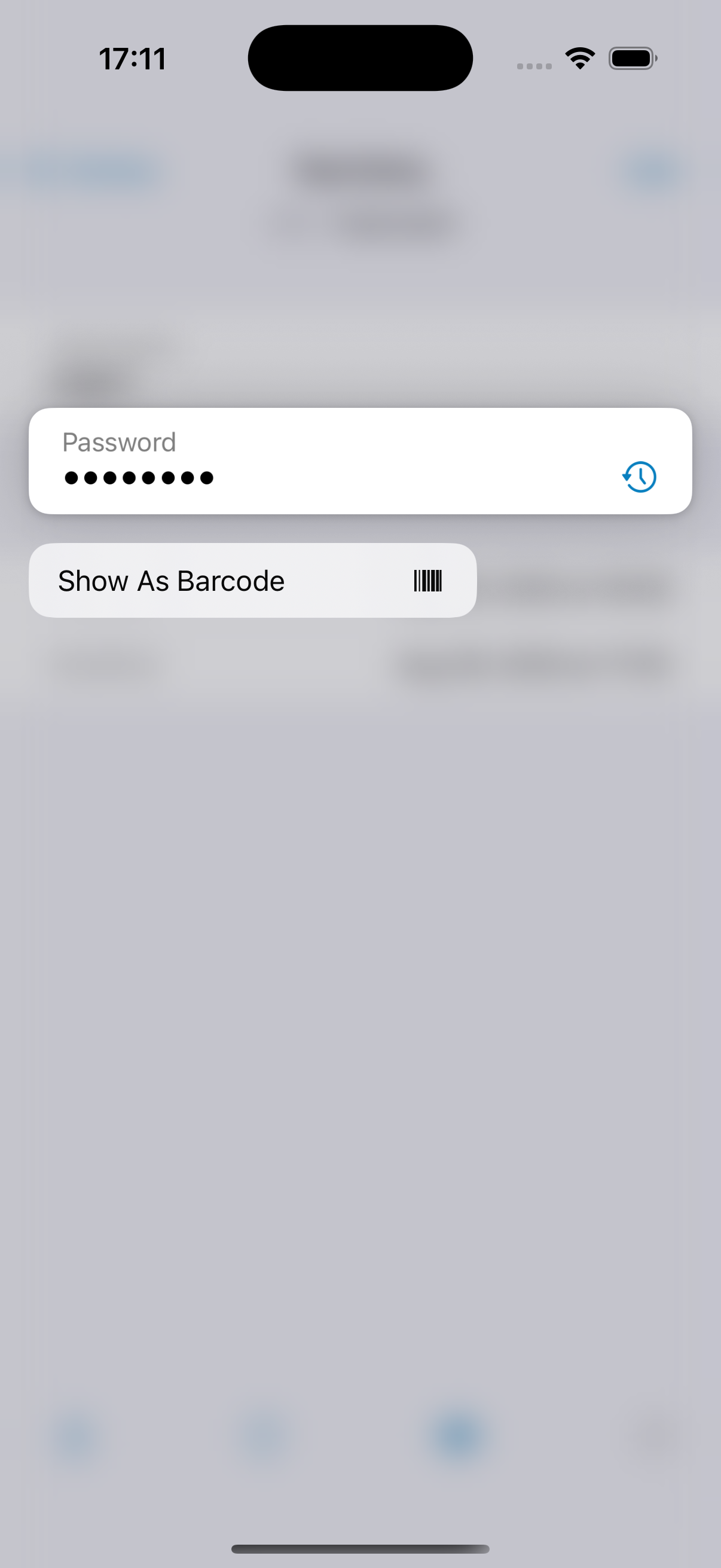
How about we add a context menu (long-press on iOS, right-mouse on macOS) to the password field (when viewing the details of an entry) offering a “Show As Barcode” option, would that work for you?
Code 128 is natively supported by Apple SDK, so this is relatively easy to add.
Note: code 128 “only” supports ascii characters 0-127, so this option will need to be disabled if other characters are found in the password. It is best not to use other characters anyway in a password, but some people do.
0 -
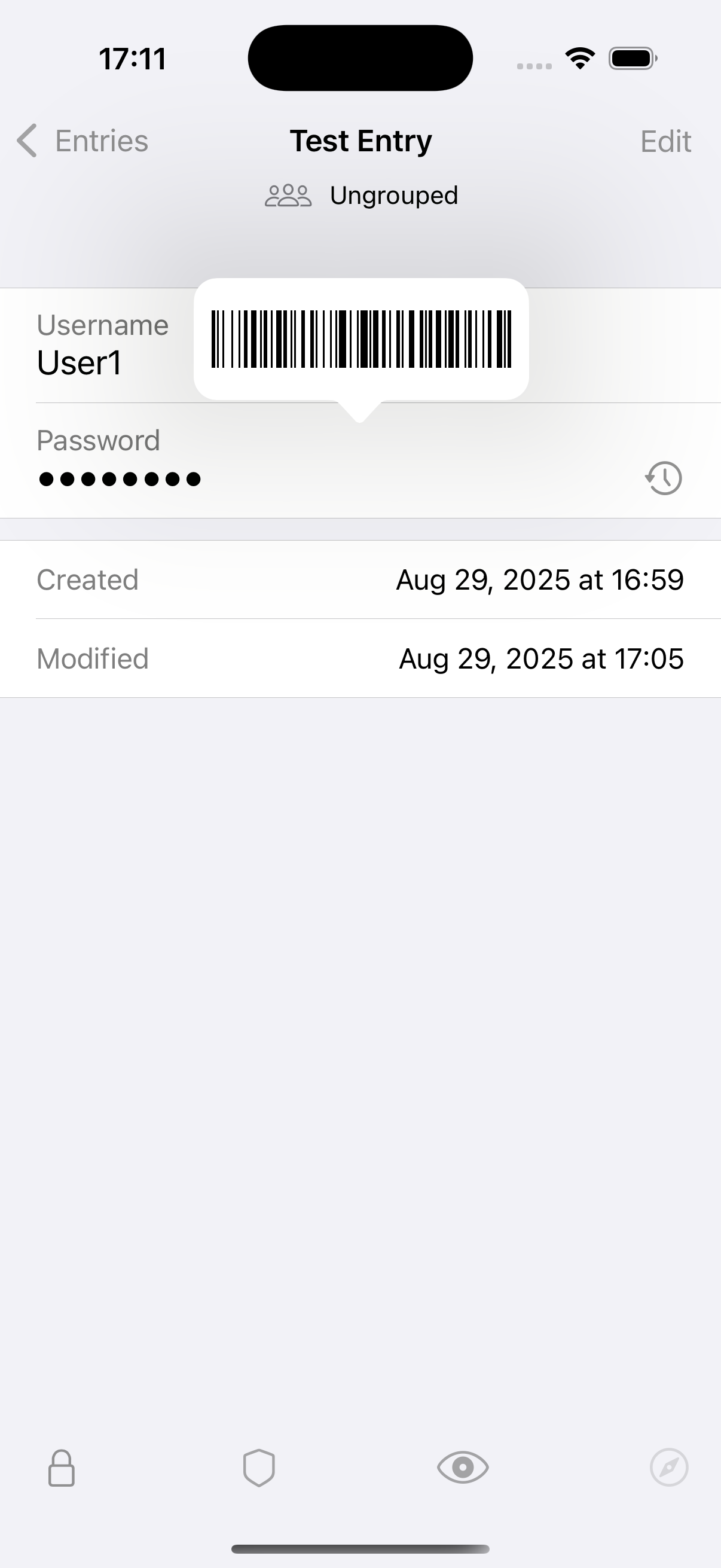
Here is an example (2 screenshots) how this could look like, for evaluating if that would fit your workflow.
 0
0 -
Hi Richard,
Wow, this is great. For my security addled brain I would love the first option - where you have to click on a button to show a barcode without showing the user name or anything else. This also would allow me to show my phone with just the bar code visible to a checkout person/system.
I once saw a scanner that was the size of a thick pen (plus the usb cable). Now I will have to search for it and hope this scanner can read from a device screen. What a slick solution that would be for having hundreds of passwords handy with the “stroke” of a pen….
I highly appreciate your interest in this feature/future request. Thank you.
Cheers
M.L.
0 -
Hi Richard,
Thinking of your comments about the limited characters and the World Wide user base PwSafe has, it might be a “requirement” to offer more that just code 128… will this open a can of worms?
I hope I have not nixed the idea of the bar code now.
Cheers
M.L.
0 -
Thinking of your comments about the limited characters and the World Wide user base PwSafe has, it might be a “requirement” to offer more that just code 128… will this open a can of worms?
In general it is best not to use non-ascii characters in passwords, so I think code-128 is a pretty good choice. Like suppose you include a ‘€’ sign in your password and you arrive at a device with a keyboard not capable of typing that character.. and there is an issue with non-uniqueness of Unicode which can also cause login failures.
I'll provide a new screenshot tomorrow to address your other comment (thanks for that input!)0 -
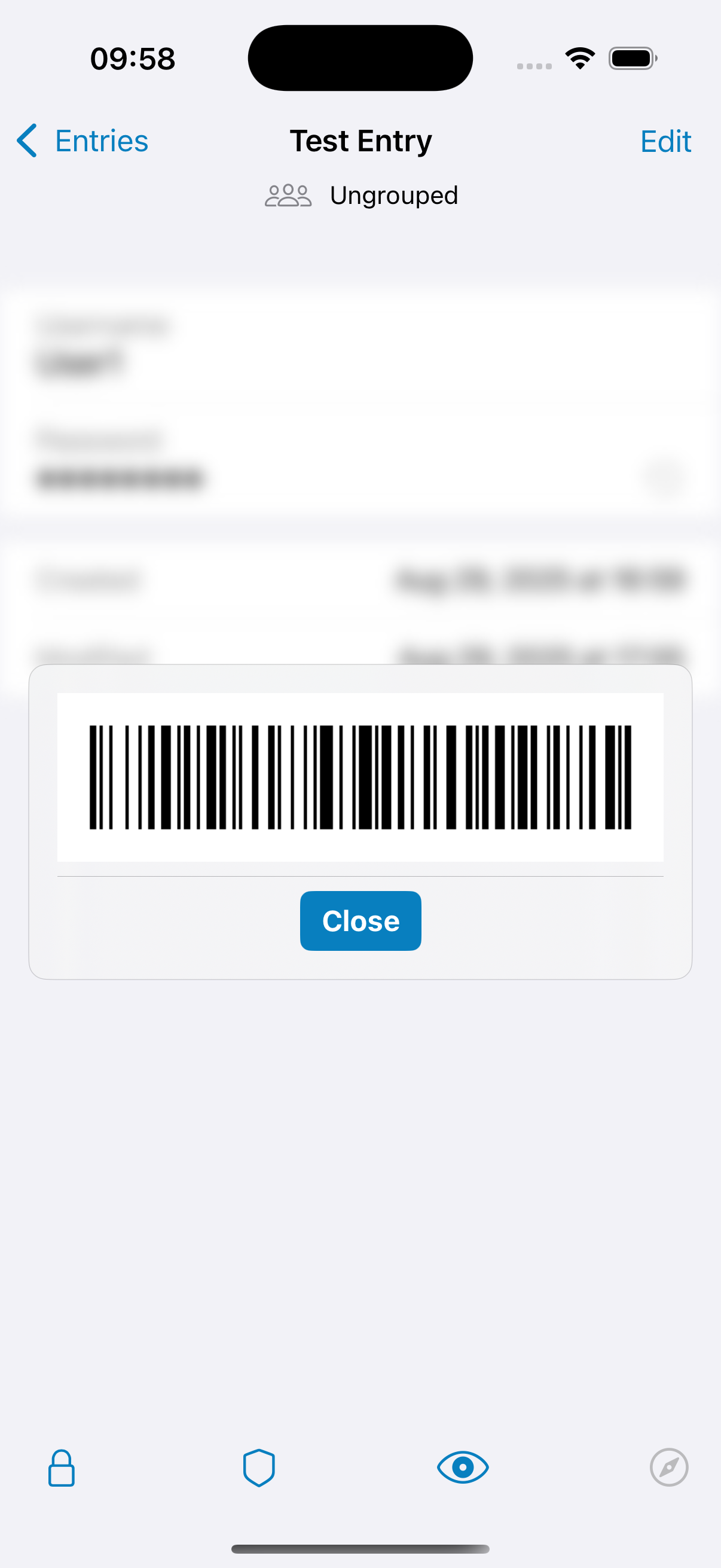
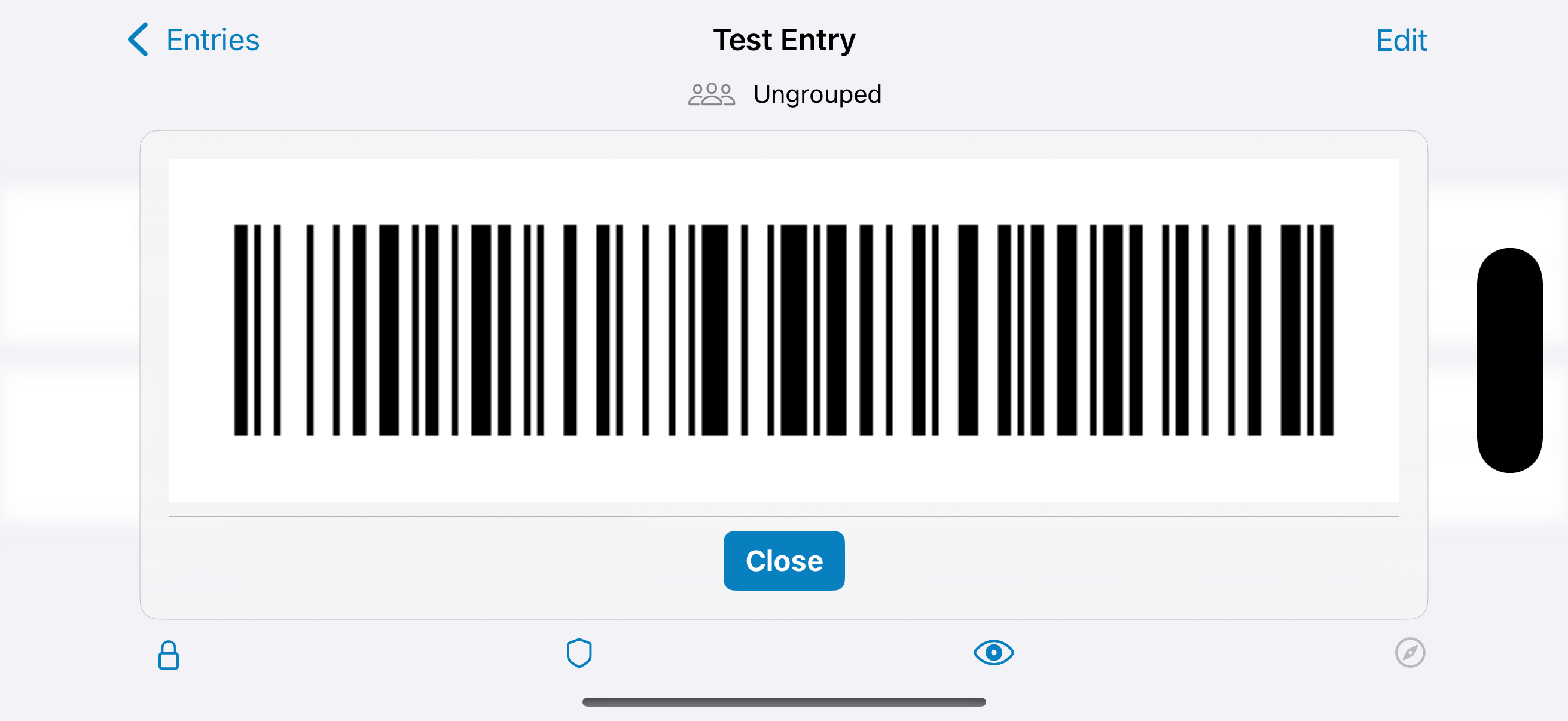
Some new screenshots (one in portrait, one in landscape, same view), how does this look like?
 0
0 -
Hi Richard,
I love it. Portrait size seems plenty big but if you need a satellite to read your code - switching to Landscape will do the trick ;-)
Joking aside, from my experience with cheap scanners I know that there is a too big. I currently use a really old Symbol LS4278 (cannot read from newer screens but great for prints) and a Wasp WDI 4500 (my iPhone screen scanner). Both have trouble if the barcode gets too big. I could scan the Portrait example “%90AGq~/E[2Z” (little short but NICE) but had to move around a bit before I could get the Landscape one. I know the standard says something about a maximum of 6.5 inches, but do all the scanners adhere to it?
Looking at your barcode example reminded me about an issue I was facing until I created my own Password policy. My iPhone does not - for my old eyes anyway - show clearly what is a zero or an uppercase O. The same for other characters depending what font is used. Two questions: Would it be possible to add a another password policy that excludes these “questionable” characters? And secondly, is there a way to use a font within PwSafe that shows these characters clearly, e. g. something like Consolas?
Thinking about my two questions makes me shake my head. Using the barcode option will render them no longer needed ;-) But still nice to have ;-))
Anyway, please let me say you are going way beyond what I was hoping for when I asked about this option. Thank you so much for all your efforts. I know there will be a lot of users who can benefit from this simple password reading/transfer feature. I wonder if any other password safe has implemented such an option.
Cheers
M.L.
0 -
Hi Richard,
I still missed one. Talking about password policies, you might need to add one that only allows only code 128 characters… or even allows to combine more than one policy, e. g. “code 128” and “exclude misreadable characters”…
Cheers
M.L.
0 -
Excellent news, I'll include this in the next update. Once this is out in-the-wild we can further improve it, like setting an upper bound to the size, we need real-world feedback for that.
As to your font remarks:
- please make sure that the ‘Colored passwords’ setting is enabled, this will show digits in blue, to distinguish 0 from O.
- the password field, when revealed, already uses a special font, different from the rest of the app, to improve reading the password
- to avoid these characters altogether, just enable the ‘Easy to read’ option in a custom (or default) password policy and these will not be used anymore when generating a new password.
Please let me know how the new barcode feature works for you once the next update is released (should be within 1-2 weeks).
0 -
I still missed one. Talking about password policies, you might need to add one that only allows only code 128 characters… or even allows to combine more than one policy, e. g. “code 128” and “exclude misreadable characters”…
The password generator always produces code-128 compatible passwords irrespective of the options enabled (unless you override the Symbols field manually and put non-compatible characters in there).
The existing ‘Easy to read’ option should do precisely what you want.
0
Please sign in to leave a comment.
Comments
12 comments